Choosing a Two-Monitor Dock for MacBook Air M4 and M5
M4 and M5 MacBook Air models drive two external monitors natively, lid open or closed. The question is whether you need a dock at all, and if so, which one documents your exact setup.
- Mac (covered)
- Port (covered)
- Dock (covered)
- Cable (covered)
- Display
Short answer
If each monitor can take its own cable from one of the Mac's two Thunderbolt 4 ports, you may not need a dock. If you want one cable to the laptop, choose a dock whose maker documents two extended displays on base M4 or M5 at your resolution and refresh rate. Of the candidates we checked, the Plugable TBT-UDM documents dual 4K at 60Hz over HDMI on M4 and M5 Macs. That is the maker's claim; we have not tested it.
Write down the requirement first
For each monitor note the input it has (HDMI, DisplayPort, USB-C), its native resolution and the refresh rate you want. Then note whether you work with the lid open, closed, or both, and whether the dock must charge the Mac. Those five facts decide everything below. A "4K monitor" that you want at 120Hz is a different requirement from one at 60Hz.
What Apple documents for M4 and M5
Apple's MacBook Air display article lists the same limits for M4 and M5 Apple documentation:
- Two external displays up to 6K at 60Hz or 4K at 144Hz, in addition to the built-in display.
- Or one external display up to 8K at 60Hz, 5K at 120Hz or 4K at 240Hz.
- Closing the lid does not increase the number of external displays.
- Displays connect to the Thunderbolt 4 ports on the side of the computer.
- A supported hub or daisy-chain can put up to two displays on one Thunderbolt port, without raising the maximum. Apple suggests connecting the highest-resolution display first.
When direct cables are already enough
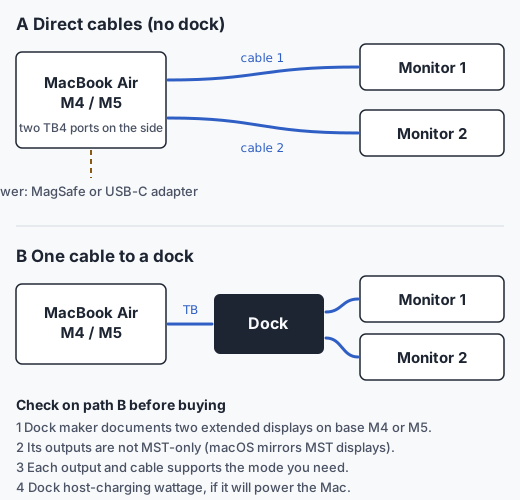
Two cables, one per port, is the simplest documented path. It suits monitors with USB-C or Thunderbolt inputs, or monitors you can reach with a USB-C to HDMI or USB-C to DisplayPort cable rated for your mode. It removes the dock as a hop, so there is no dock driver, dock firmware or dock output limit to check. Each cable or adapter still has its own rated modes, and you still need to confirm them. Nothing else to buy if you already own suitable cables.
The trade-off is that both Thunderbolt ports are now busy. Charge through the MagSafe port if your model has one, or use a monitor that supplies USB-C power to the Mac. You also lose the single-cable convenience at the desk.
Choose a dock when you want one cable for monitors, charging, Ethernet and USB, or when your monitors' inputs do not match what cables from the Mac can reach.
Named candidates and what their makers document
We list only products whose current documentation we read on November 9, 2026. This table is a documentation check, not a test result. Our scored picks are in the best docks for a MacBook Air with two monitors.
| Dock | What the maker documents for this setup | Status | Gaps |
|---|---|---|---|
| Plugable TBT-UDM | Two HDMI outputs, each up to 4K at 60Hz; dual 4K 60Hz "on all M4/M5 systems"; or one display up to 6K on the downstream Thunderbolt port; maximum two displays total. Host charging 100W (96W certified). No drivers; not DisplayLink. Includes a 1.0m Thunderbolt 4 cable. | Manufacturer documentation | No test by us. HDMI outputs top out at 4K 60Hz, so it does not cover 4K at 144Hz. |
| CalDigit TS4 | Three Thunderbolt 4 ports in total: one host port to the Mac and two downstream ports for devices. One DisplayPort 1.4 port, up to 98W host charging, macOS 11.4 or later, included 0.8m Thunderbolt 4 cable. | Not confirmed | CalDigit's user manual allows up to two monitors when the computer's Thunderbolt ports support dual displays, but it does not name MacBook Air with M4 or M5. Ask CalDigit to confirm before buying for this use. See the TS4 review. |
Plugable's TBT-UDM page also carries an older line saying base M1, M2 and M3 Macs support a single display, next to a note that M3 supports dual displays with the lid closed. That line does not affect M4 or M5, but it shows why we read a full page rather than one bullet.
Avoid MST-only dual outputs on a Mac
Plugable and Anker both document that macOS does not extend displays over DisplayPort MST. A dock whose second output depends on MST will mirror on your Mac, even on M4 or M5.
Who should not buy a dock for this
- You already have two cables that reach both monitors at the mode you need, and you do not mind using both ports.
- You want three or more external monitors. M4 and M5 support two natively; a third needs DisplayLink. See Native video vs DisplayLink.
- You need 4K above 60Hz on both screens and the dock's outputs are limited to 4K 60Hz.
- You need the dock to charge something that draws more than its documented host power. See Does a dock really charge your laptop?