HDMI, DisplayPort or USB-C: Choosing the Cable Between Your Dock and Monitor
The last cable in the chain is the easiest to get wrong and the cheapest to fix. Start from the exact port on each end.
- Mac
- Port
- Dock (covered)
- Cable (covered)
- Display (covered)
Short answer
Use the same connector on both ends when you can: HDMI to HDMI, DisplayPort to DisplayPort, or a video-capable USB-C or Thunderbolt cable to a USB-C monitor. Choose a cable whose maker rates it for your resolution and refresh rate. If the connectors differ, buy an adapter made for that direction, from the dock's output to the monitor's input.
Identify the exact port on each end
On the dock, read its documentation for each video output: the connector, whether it is native or DisplayLink, and its maximum mode. On the monitor, read the input labels on the back and its manual. Some monitors have several HDMI inputs with different capabilities.
On the Mac itself, Apple's specifications for M1 and M2 MacBook Air list native DisplayPort output over USB-C, plus HDMI, DVI and VGA through adapters sold separately. Apple's port guide says the Thunderbolt / USB 4 and Thunderbolt 4 ports accept displays over Thunderbolt or USB-C cables, and adapters for other devices.
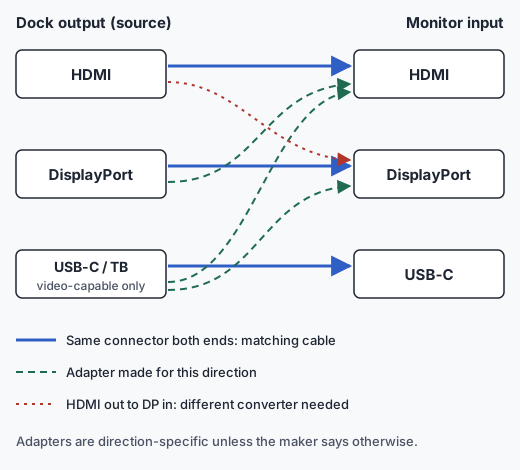
| Dock output | Monitor input | What to use | Check |
|---|---|---|---|
| HDMI | HDMI | HDMI cable | Rated by its maker for your mode |
| DisplayPort | DisplayPort | DisplayPort cable | Rated for your mode |
| USB-C or Thunderbolt (video) | USB-C | Video-capable USB-C or Thunderbolt cable | Cable states video or Thunderbolt support, not only charging |
| USB-C or Thunderbolt (video) | HDMI | USB-C to HDMI adapter or cable | Made for USB-C source to HDMI display; mode listed |
| USB-C or Thunderbolt (video) | DisplayPort | USB-C to DisplayPort adapter or cable | Made for USB-C source; mode listed |
| DisplayPort | HDMI | DisplayPort to HDMI adapter | Made for DisplayPort source to HDMI display |
| HDMI | DisplayPort | HDMI to DisplayPort converter | A different product type; a DisplayPort-to-HDMI adapter does not reverse unless its maker says so |
Video-capable USB-C versus "it fits"
A USB-C plug fitting both ends proves nothing about video. Plugable's connector guide notes that all USB4 and Thunderbolt connections are USB-C, but not every USB-C connection supports USB4 or Thunderbolt. Its charging guide adds that a cable may support charging but lack the data or video capability a dock needs.
For a USB-C monitor, use a cable whose maker says it carries video (or a Thunderbolt cable where the dock calls for one). A charge-only USB-C cable can fit both ports and still carry no picture.
Adapters have a direction
Most video adapters convert one way: from a source connector to a display connector. Buy an adapter by reading which end connects to the computer or dock and which to the monitor. A DisplayPort-to-HDMI adapter takes DisplayPort from the dock and feeds an HDMI monitor. It is not an HDMI-to-DisplayPort converter. Treat any adapter as one-directional unless its maker documents both directions.
Worked example from published documentation
Desk: MacBook Air with M4, two 4K monitors with HDMI inputs, one cable to the Mac.
- Host. Apple documents two external displays up to 6K 60Hz or 4K 144Hz on M4 Apple documentation.
- Dock. Plugable documents the TBT-UDM's two HDMI outputs at up to 4K 60Hz each, two displays on M4 and M5 Macs, maximum two displays total Manufacturer documentation.
- Cables. HDMI to HDMI on both outputs; no adapter. Choose HDMI cables rated for 4K at 60Hz.
- Limit. This path tops out at 4K 60Hz per monitor because of the dock's HDMI outputs, even though the Mac lists 4K 144Hz.
Variant: a DisplayPort monitor on a CalDigit TS4. CalDigit lists one DisplayPort 1.4 output, so a DisplayPort cable connects it directly; its manual says the port works only with active adapters if you convert to another connector. CalDigit does not name MacBook Air with M2 to M5 for two monitors; see the TS4 review and the dual 4K checklist.
This example is assembled from documentation. We have not connected this exact setup.
Pre-purchase cable checklist
- Dock output connector and whether it is native or DisplayLink.
- Monitor input connector, and which input you will use if it has several.
- Resolution and refresh rate you need on that monitor.
- Cable or adapter rated for that mode by its maker.
- Adapter direction: dock or computer end, monitor end.
- Length you need from dock to monitor, measured with some slack.
- For USB-C to USB-C: the cable is documented for video, not only charging.