Dual 4K at 60Hz Through a Dock: A Complete Connection Checklist
"Supports 4K 60Hz" on a dock usually describes one output. Two monitors at that mode need the whole chain to support both at the same time.
- Mac (covered)
- Port (covered)
- Dock (covered)
- Cable (covered)
- Display (covered)
Short answer
Dual 4K at 60Hz natively is documented for MacBook Air with M4 or M5 (lid open or closed) and with M3 (lid closed only). It is not native on M1 or M2. After the host, you need a dock that documents two simultaneous 4K 60Hz outputs on that Mac, and every cable and adapter rated for 4K 60Hz.
Define the requirement exactly
Write it as: two independent (extended) displays, each 3840 x 2160 at 60Hz, at the same time, from one Mac, with the lid open or closed. Each word removes a shortcut. "Independent" rules out MST mirroring on macOS. "At the same time" rules out adding up single-output maximums. "Lid" matters for M3.
Hop 1: the host
| MacBook Air | Two external at 4K 60Hz natively? | Basis |
|---|---|---|
| M1, M2 | No; one external display | Apple documentation |
| M3, lid open | No; one external display | Apple documentation |
| M3, lid closed | Yes; secondary up to 5K 60Hz or 4K 100Hz | Apple documentation |
| M4, M5 | Yes; two up to 6K 60Hz or 4K 144Hz | Apple documentation |
The full path, hop by hop
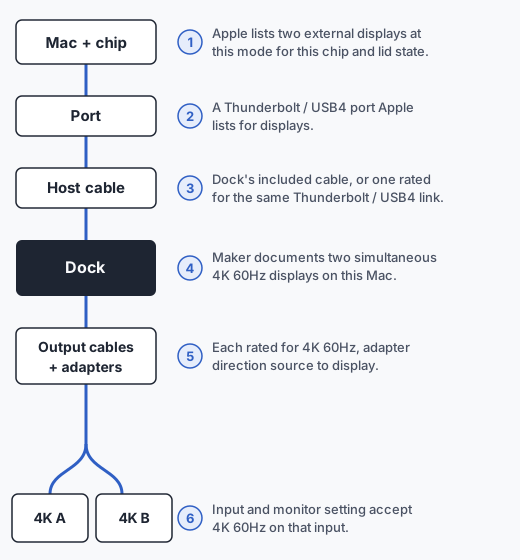
- Mac and chip. Apple lists two external displays at your mode for your chip and lid state (table above).
- Port. Use a Thunderbolt / USB 4 or Thunderbolt 4 port on the Mac. Apple's port guide lists these for displays on every Apple silicon MacBook Air.
- Host cable. Use the cable that came with the dock, or one rated for the same Thunderbolt or USB4 link. Plugable includes a 1.0m 40Gbps Thunderbolt 4 cable with the TBT-UDM; CalDigit includes a 0.8m Thunderbolt 4 cable with the TS4.
- Dock. The maker documents two simultaneous 4K 60Hz displays on your Mac, not just a per-port maximum. See the next section.
- Output cables and adapters. Each is rated for 4K at 60Hz, and each adapter is made for the direction from dock output to monitor input. See choosing the cable.
- Monitors. The input you use accepts 3840 x 2160 at 60Hz. Some monitors have per-input settings; check the monitor's manual.
Read for simultaneous modes, not maximums
A dock page that lists "up to 4K 60Hz" on HDMI and "up to 6K" on Thunderbolt has not told you that both work at once on your Mac. Look for a sentence that names two displays together and your host.
| Dock | Simultaneous statement found | Status |
|---|---|---|
| Plugable TBT-UDM | Two HDMI outputs, each up to 4K at 60Hz; "up to two 4K 60Hz HDMI displays on all M4/M5 systems, Pro/Max M-series Macs, and M3 Macs in clamshell mode." Total maximum two displays, depending on the host. | Manufacturer documentation |
| CalDigit TS4 | One DisplayPort 1.4 port and three Thunderbolt 4 ports in total (one host port to the Mac, two downstream). The user manual allows up to two monitors when the computer's Thunderbolt ports support dual displays, and lists dual 4K 60Hz for Thunderbolt 4, Thunderbolt 3 and USB4 PCs, Intel Macs and M1 Pro, Max and Ultra. It says the original M1 gets a single display and does not name MacBook Air with M2 to M5. | Not confirmed |
Verify the setup after connecting
- System Settings > Displays shows both external monitors as separate displays, not one mirrored set.
- For each display, the refresh rate menu shows 60 Hertz selected.
- Hold Option and choose Apple menu > System Information, then Graphics/Displays: each monitor lists a 3840 x 2160 resolution.
- Sleep and wake once. Both monitors return at the same mode.
- If a monitor drops to 30Hz or a lower resolution, swap that segment's cable for one rated 4K 60Hz before suspecting the dock.
Known unconfirmed cases
- Docks whose two outputs share one DisplayPort stream through MST. macOS mirrors MST displays, per Plugable.
- 4K at 120Hz or 144Hz on both monitors through a dock. Apple lists 4K 144Hz for two displays on M4 and M5, but neither dock above documents it on HDMI.
- Daisy-chained monitors. Apple says daisy-chaining can carry up to two displays on one Thunderbolt port without raising the maximum; check the monitor maker's support for your Mac.
- Any combination we have not read documentation for. We label these not confirmed rather than guess.