Does a Dock Really Charge Your Laptop? Understanding Host Power Delivery
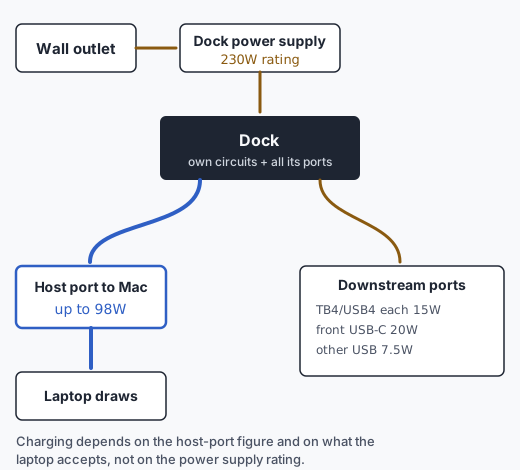
A dock's power brick rating is not the power your laptop receives. Three separate numbers decide whether, and how fast, a dock charges your laptop.
- Mac (covered)
- Port (covered)
- Dock (covered)
- Cable (covered)
- Display
Short answer
Look for the dock's host-port charging figure, not its power supply rating. Then check that your laptop accepts charging on the port you plug the dock into. The laptop decides how much it draws, up to what the dock offers. For a MacBook Air, Apple ships 30W or 35W adapters with M2 and M3 models, so a dock offering more is not a problem; it simply offers more than the Mac may take.
Three different numbers
- Power supply rating. What the dock's own brick can deliver to the dock. CalDigit lists a 230W supply for the TS4.
- Dock budget. The dock splits that power between its own circuits, every downstream port and the laptop. CalDigit publishes the split: up to 98W on the host port, 15W on each downstream Thunderbolt 4 port, 20W on the front USB-C port, 7.5W on the remaining USB ports.
- Host-delivered power. What reaches the laptop through the host cable. This is the number for charging, and the laptop negotiates it. Plugable says the TBT-UDM "adjusts and only sends the optimal wattage" when a laptop needs less than its 100W.
Published host-power figures for named docks
| Dock | Host charging (maker figure) | Power supply | Source |
|---|---|---|---|
| CalDigit TS4 | Up to 98W (5V, 9V, 15V at 3A; 20V at 4.9A) | 230W | Manufacturer documentation |
| Plugable TBT-UDM | 100W (96W certified) | Included adapter; rating not captured | Manufacturer documentation |
| Plugable TBT4-UD5 | 100W (96W certified) | Not captured | Manufacturer comparison table |
| Plugable TBT-UDT3 | 140W | Not captured | Manufacturer comparison table |
| Plugable TBT4-UDZ | 100W (98W certified) | Not captured | Manufacturer comparison table |
The three lower Plugable rows come from the comparison table on the TBT-UDM page, not from each product's own page. "Not captured" means we did not record that figure; it does not mean the maker omits it.
Does your laptop accept charging on that port?
Apple lists charging among the functions of the Thunderbolt / USB 4 ports on the MacBook Air (M1, 2020) and on the 13-inch and 15-inch M2 models, which also have a MagSafe 3 port. Apple says the M2 and M3 MacBook Air are fast-charge capable with its 70W USB-C adapter Apple documentation.
Other laptops differ. Plugable's charging guide notes that some USB-C ports carry data and video but not charging input, some laptops charge only on specific ports, and some gaming or workstation laptops need a proprietary charger or more power than a dock can supply. Its example: a laptop that ships with a 140W adapter may not get enough from a 100W dock.
No universal wattage rule
We do not say "every laptop needs X watts." Compare your laptop's own adapter rating with the dock's host-port figure, and remember the laptop may run on less power with slower charging, or drain under heavy load.
Built-in power delivery vs pass-through
Plugable describes three kinds of dock:
- Built-in Power Delivery: the dock has its own AC adapter and charges the laptop up to its rated host wattage.
- PD pass-through: you connect a separate USB-C charger to the dock. Part of that charger's power can be reserved for the hub itself, so a 100W charger may deliver less than 100W to the laptop.
- No host charging: the dock provides displays and ports but does not charge the laptop.
Cables matter too. Plugable advises using the included host cable, or one rated for the required Power Delivery wattage and data or Thunderbolt link, and notes a USB-C to USB-A cable cannot carry USB-C PD charging.
If charging stops at a consistent percentage, check battery management settings before blaming the dock; Plugable notes that a configured charging limit is not a dock fault.
How a physical charging test would be recorded
We have not measured charging for any dock. When we do, the record will include:
- Laptop model, chip, battery percentage at start, macOS version and battery settings.
- Dock model, firmware if shown, power supply used, host cable used.
- Port on the laptop, other devices connected to the dock, display count and modes.
- Charging state and reported power at intervals, using a named USB-C power meter or the laptop's own reporting.
- Workload during the test, start and end time, ambient conditions.
One test describes one configuration. It would not become a rule for other laptops.