Native Video vs DisplayLink: Which Docking Approach Fits Your Mac?
Choose how the picture reaches each monitor before you choose a product. The connector on the dock does not tell you which method it uses.
- Mac (covered)
- Port (covered)
- Dock (covered)
- Cable
- Display
Short answer
Use native video whenever your Mac's documented limit covers the number and mode of monitors you need. It needs no extra software and counts on Apple's own display support. Use DisplayLink only for screens beyond that limit, and only if you can install DisplayLink Manager, grant its permissions, and live without protected video on those screens.
Three different things that share one plug
USB-C is a connector shape. Plugable's connector guide puts it plainly: every USB4 and Thunderbolt 3, 4 or 5 connection uses USB-C, but not every USB-C connection supports USB4 or Thunderbolt.
Thunderbolt and USB4 are transports that run through that connector. Apple lists the MacBook Air ports as Thunderbolt / USB 4 (2020 to 2024) or Thunderbolt 4 (2025 and later), with DisplayPort output among their functions. Native video rides on this.
DisplayLink is a graphics method. A DisplayLink chip in the dock or adapter receives the picture as USB data and drives the monitor. It needs DisplayLink Manager running on the Mac. A DisplayLink dock can itself connect over USB-C or Thunderbolt: Plugable lists a Thunderbolt-connected model, the TBT-6950PD, among its DisplayLink products.
So "Thunderbolt dock" and "DisplayLink dock" are not opposites. One box can use Thunderbolt for the host link and DisplayLink for some or all of its video outputs.
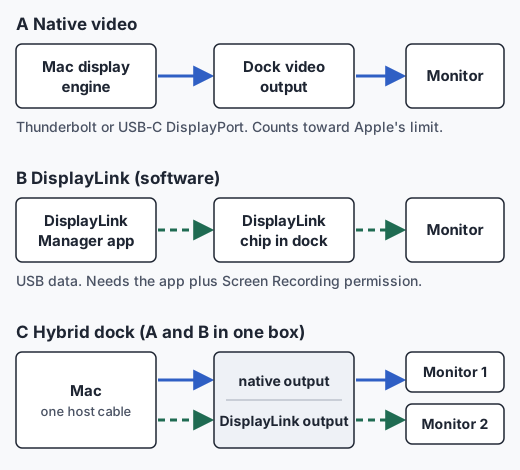
Side-by-side comparison
| Question | Native video | DisplayLink |
|---|---|---|
| Counts toward Apple's display limit | Yes | No; it adds screens beyond it |
| Software on the Mac | None for video. Plugable's native dock notes macOS 13+ asks you to approve a new accessory. | DisplayLink Manager app, which runs a setup wizard after install |
| macOS permissions | Accessory approval only | Screen Recording and Background Activity |
| macOS versions | Set by the dock maker; for example CalDigit lists macOS 11.4 or later for its TS4 | The current Synaptics download list shows release 16.2 (July 17, 2026) for macOS 14 Sonoma and later; older releases cover older macOS |
| Protected video (HDCP, some streaming) | Not affected by the method | Not supported on DisplayLink screens; on macOS may be blocked on every screen while one is active |
| Screens before login | Available | Manager starts after login; an optional Login Screen Extension exists |
| Extended vs mirrored on macOS | Extended, unless the dock splits one stream with MST, which macOS mirrors | Mirrored or extended; DisplayLink's guide describes both |
| Games and heavy video work | We have no measurements for either method. Check the maker's statements for your workload. | |
Sources for each row are listed at the end of this page.
What the permissions actually mean
DisplayLink's first-time configuration guide says macOS requires Screen Recording permission so the app can read the screen pixels it renders for the extra display and send them over USB to the DisplayLink device. The same page states that DisplayLink Manager does not transmit screen data or pixels to Synaptics or any third party. After granting Screen Recording you restart the app. Background Activity is usually granted during installation; if not, the wizard asks for it.
The permission's name describes the access macOS grants, not what the app does with it. It is not evidence that video is stored or uploaded. It is still a real access decision, which is why managed work Macs may not allow it. If your employer or school manages the Mac, ask before buying a DisplayLink dock.
Which cases fit which approach
| Your case | Approach |
|---|---|
| M4 or M5 Air, two monitors | Native covers it |
| M3 Air, two monitors, lid closed | Native covers it (macOS 14.3+) |
| M3 Air, two monitors, lid open | One native plus one DisplayLink |
| M1 or M2 Air, two monitors | One native plus one DisplayLink, or two DisplayLink |
| Any Air, more monitors than Apple lists | Native up to the limit, DisplayLink beyond |
| No third-party software allowed | Native only; stay within Apple's limit |
| Protected streaming needed on an external screen | Native only for that screen |
Our dock picks apply the same rules to named products, chip by chip.
Checklist before you choose a product
- Your exact Mac model, chip and macOS version.
- Number of external monitors and the resolution and refresh rate of each.
- Lid open, lid closed, or both.
- Whether you can install DisplayLink Manager and grant Screen Recording.
- Whether you need protected video or screens at the login window.
- For each dock output: is it native or DisplayLink? The maker's documentation should say.
- If the dock offers two native outputs from one cable, does it use MST? macOS mirrors MST displays.