MacBook Air M3 and Two Monitors: Lid State, Dock and Setup Checklist
The M3 MacBook Air is the one Air whose external display count depends on the lid. Two monitors work with the lid closed, under conditions Apple spells out.
- Mac (covered)
- Port (covered)
- Dock (covered)
- Cable
- Display (covered)
Short answer
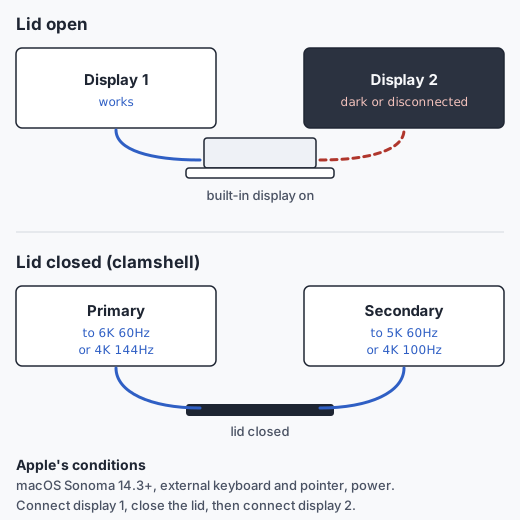
With the lid open, an M3 MacBook Air supports one external display. With the lid closed, on macOS Sonoma 14.3 or later, with an external keyboard and pointer and power connected, it supports two: a primary up to 6K at 60Hz (or 4K at 144Hz) and a secondary up to 5K at 60Hz (or 4K at 100Hz). Opening the lid makes the second display go dark.
Which M3 this applies to
This guide covers the MacBook Air with the base M3 chip. Apple's dual-monitor article covers both MacBook Air and MacBook Pro with M3, but with different software floors: macOS Sonoma 14.3 or later for MacBook Air and 14.6 or later for MacBook Pro. MacBook Pro models with M3 Pro or M3 Max have different display support altogether; do not apply this page to them.
Apple's requirements, in order
From Apple's article "Use dual monitors with your MacBook Air and MacBook Pro with M3 chip" (US version, published July 30, 2024; retrieved November 9, 2026) Apple documentation:
- Connect an external keyboard and a mouse or trackpad.
- Connect the Mac to power. If the external display provides power to the Mac, a separate adapter isn't needed.
- Connect the first display. It becomes the primary display, up to 6K at 60Hz (or 4K at 144Hz).
- Close the laptop lid.
- Connect the second display. It becomes the secondary display, up to 5K at 60Hz (or 4K at 100Hz).
Apple also notes that arrangement preferences are kept in System Settings, and that to reset which display is primary you disconnect and reconnect both.
Direct connection and documented dock paths
Direct. Each display connects to one of the two Thunderbolt / USB 4 ports. This is the path Apple's instructions describe, and Apple's fallback advice for problems: if a display on a hub or dock can only mirror the built-in display, connect it directly to a port on the Mac. With both ports used for displays, power comes through MagSafe or from a monitor that supplies USB-C power.
Through a dock. A dock path needs the dock maker to document two displays for base M3 with the lid closed. Plugable's TBT-UDM page says base M3 Macs support dual displays in clamshell mode through that dock, over its two HDMI outputs at up to 4K 60Hz each Manufacturer documentation. We have not tested it. The same page elsewhere says base M3 supports a single display and then adds the clamshell note, so read the full compatibility section.
For other docks, a generic "dual 4K" claim is not enough. Look for wording that names base M3 and closed-lid operation. Docks that split one output with MST mirror on macOS, so they do not give you two desktops.
If you need the lid open
With the lid open you keep the built-in screen and one native external display. A second external display then needs a software-driven DisplayLink display, which brings the conditions in Native video vs DisplayLink: DisplayLink Manager, Screen Recording permission, and no protected video on that screen.
If you switch between lid open and closed during the day, plan for both. Apple documents that when the primary display is disconnected and the lid is opened, the secondary display becomes the primary.
Setup checklist
- About This Mac shows "MacBook Air" and chip "Apple M3".
- macOS is Sonoma 14.3 or later.
- External keyboard and mouse or trackpad are connected and working.
- The Mac is on power through MagSafe, a USB-C adapter, a powered display, or a dock that documents host charging.
- Your highest-demand monitor is the primary (up to 6K 60Hz or 4K 144Hz). The second fits 5K 60Hz or 4K 100Hz.
- Connect the first display, close the lid, then connect the second.
- If either display only mirrors through a dock, try connecting it directly to the Mac.
Still only one picture? Use the one-monitor diagnostic guide.